
Setting up DeepDyve on JumpCloud SSO
If your organization uses JumpCloud for Single Sign On (SSO), here is how you can set up DeepDyve in your system. It takes roughly 5 minutes to complete. If you aren't comfortable following the set up on your own, ask your DeepDyve account manager to book a time where you can screenshare with us, and we can guide you through it.
- Go to https://console.jumpcloud.com/ and log in as an admin.
- Navigate to “SSO Applications" on the left sidebar.
- Click on blue-green button on the upper left: "Add New application".
- On the “Create New Application Integration” page, click on the “Select” link beneath the “Custom Application” tile in the lower right corner:

- Click the “Next” button in the lower right corner.
- On the following screen, select “Manage Single Sign-On (SSO)” and “Configure SSO with SAML”. Click Next.
- On “Enter general info” enter this information:
- Display Label: DeepDyve
- Description: Your one-stop literature management solution, powered by AI
- Logo: Add DeepDyve's logo, available here
-
Click “Save Application”. You should see a success message like the following:
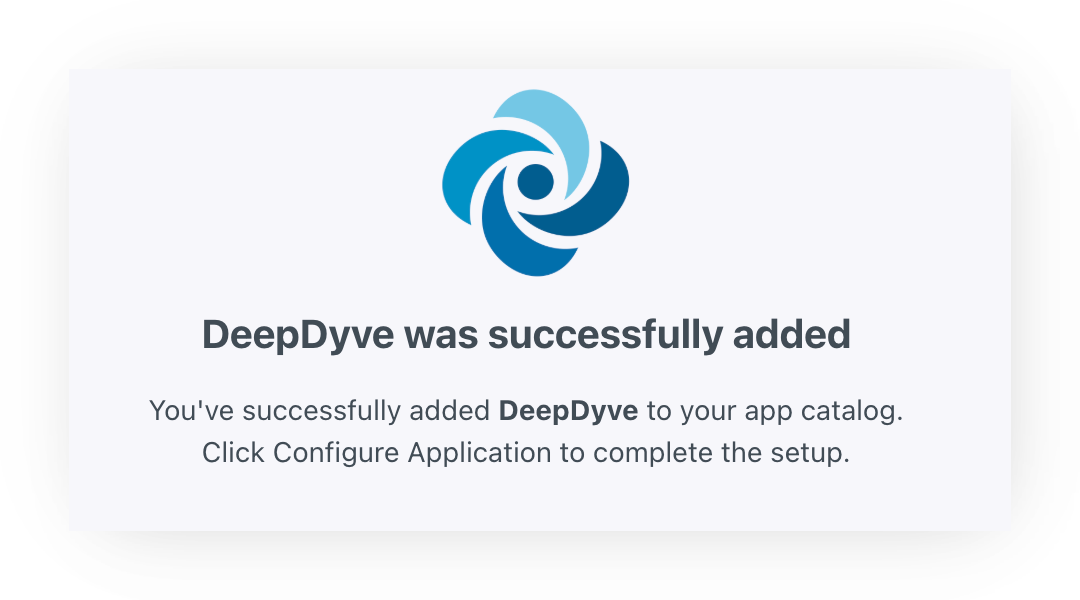
- Click on “Configure Application” and enter the following information :
- IdP Entity ID: https://[company-short-name].deepdyve.com
- Company short name will be provided by your DeepDyve contact
- SP Entity ID: https://jumpcloud-sso.deepdyve.com
- ACS URLs: https://www.deepdyve.com/jumpcloud-saml/acs
- Default RelayState: https://www.deepdyve.com/jumpcloud-saml/[company-short-name]
- Login URL: https://www.deepdyve.com/jumpcloud-saml/[company-short-name]
- IdP URL: https://sso.jumpcloud.com/saml2/deepdyve
- Attributes
- firstname >> firstname
- lastname >> lastname
- email >> email
- IdP Entity ID: https://[company-short-name].deepdyve.com
- On upper right click on “Actions”; then select “Download Certificate” in the dropdown list’. Save and email to your DeepDyve contact.


- Also send your DeepDyve contact the following three items:
- IdP Entity ID
- IdP URL
- Certificate